August 12, 2026 / 6 min read
Clipboard History on Ubuntu: A Win+V Alternative for Linux
Windows has Win+V. Linux doesn't, so I built it. clipd is an open-source clipboard manager for Ubuntu with an instant popup, searchable history, and a free .deb download.
By Ganesh Bastapure
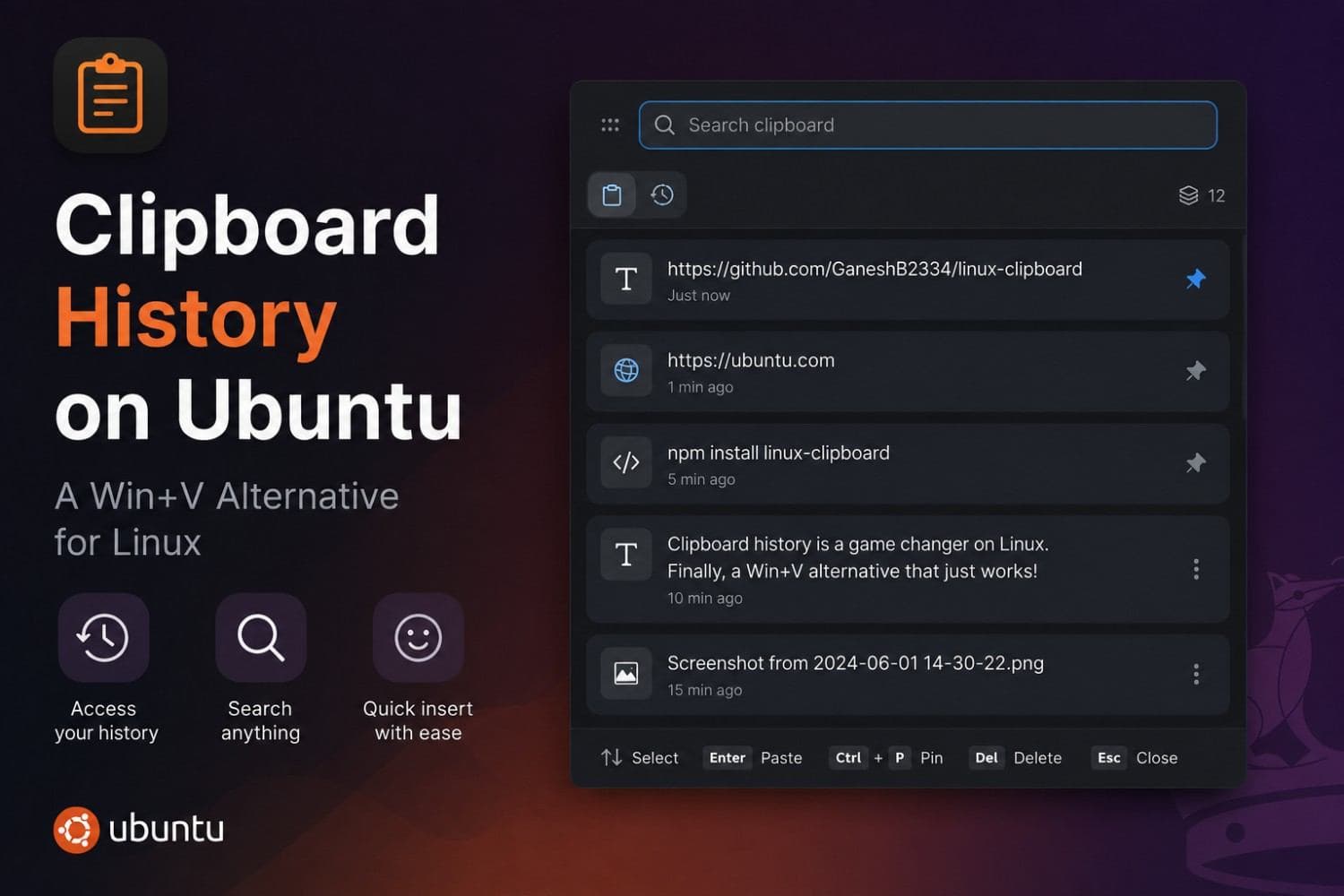
If you've moved to Linux from Windows, you've probably reached for Win+V on reflex and got nothing. Windows keeps the last several things you copied and lets you pick one from a popup. Linux keeps exactly one, and the moment you copy something else, the previous one is gone.
That gap is small until it isn't. Copying three values out of a config file one at a time, or losing a URL because you copied a command right after it.
So I built clipd: a free, open-source clipboard manager for Ubuntu and Debian — a lightweight CopyQ alternative with the popup Windows should have shipped on Linux years ago.
Download the .deb · Source on GitHub
What it does
Press the shortcut, start typing to filter, press Enter. That's the entire interaction.
- Searchable history. Type to filter from the first keystroke, with no clicking into a search box first.
- Pinned items for the things you paste constantly.
- Every format is kept. Copying styled text keeps both the rich and plain versions, so "paste as plain text" still works days later.
- Passwords are dropped, not stored. More on this below.
- Images, with real thumbnails. Copy an image from a browser, or Ctrl+C a single image file in a file manager — both end up in history as an actual picture, with a resize-and-copy action right in the preview pane.
- An emoji picker, as a second tab (Ctrl+E) — search, categories, skin tone, recents.
- A floating popup that stays put. Drag it by the header to reposition it; it remembers where you left it, across closes and restarts.
Install on Ubuntu or Debian
The quickest way, on Ubuntu or Debian:
curl -fsSL https://raw.githubusercontent.com/GaneshB2334/linux-clipboard/main/scripts/install.sh | bashIt detects your architecture and session type, downloads the matching release, verifies its checksum, and starts clipd — nothing else to run.
Prefer to do it by hand? Grab the package from the link above, then:
sudo apt install ./clipd_amd64.debThat's it — no logout, nothing else to configure. The popup opens with Ctrl+Alt+C immediately, and paste works out of the box: it's injected through a kernel-level virtual keyboard rather than a desktop-specific extension, so there's no per-session setup step to wait on.
Getting actual Super+V
If you want the real Win+V muscle memory, add it yourself in Settings → Keyboard → View and Customize Shortcuts → Custom Shortcuts:
Name:     Clipboard
Command:  /usr/bin/clipctl toggle
Shortcut: Super+V
This step can't be automated, and the reason is interesting: GNOME reserves every Super+key combination for itself. An application asking to bind one is refused outright, so the desktop's own shortcut settings are the only route.
It has to be fast, or you won't use it
A clipboard manager sits between you and something you were already doing. If the popup takes half a second, you stop reaching for it.
The popup opens in 9–11 milliseconds. Not because of clever rendering, but because it does no work when you open it: the window is built when clipd starts and then hidden, with its list already filled in. Opening it just makes an existing window visible.
The background process that watches your clipboard sits at about 5 MB of RAM and no measurable CPU while idle. Most clipboard tools poll, checking every half second whether anything changed, forever. clipd instead asks the display server to tell it when the clipboard changes, so it genuinely does nothing between copies.
Your passwords don't end up in it
A tool that records everything you copy will eventually record a password. That's not hypothetical. It is the default behaviour of most clipboard history tools.
It listens for the hint. KeePassXC, Bitwarden, 1Password, Firefox and Chromium all tag copied credentials with a marker that says this is a secret. clipd honours it: those copies are never written to disk.
It recognises the shape of secrets. Not everything comes from a password manager. API keys pasted from a terminal carry no marker. So clipd also detects things that look like credentials: JWTs, keys with known prefixes, private key blocks, and card numbers that pass a Luhn check. Anything flagged either way is dropped, and never enters the search index.
Paste works everywhere, the same way
Wayland deliberately forbids one application from sending keystrokes to another — a real security improvement, and also exactly what "paste this for you" needs. The usual workaround is a permission prompt that leaves a "remote access" indicator in your top bar for as long as the app runs, wildly disproportionate for a clipboard manager.
clipd injects paste through a kernel-level virtual keyboard instead — the same mechanism a second physical keyboard plugged into your machine would use. The compositor can't tell the difference, so there's no permission prompt and no indicator, and it works identically on GNOME, KDE, or plain X11. A small GNOME Shell extension ships alongside it as a second, independent fallback, used automatically if it's ever needed — it isn't what the everyday experience depends on.
What it doesn't do yet
Being straight about the gaps:
- KDE and wlroots Wayland compositors (Sway and similar) aren't a supported target yet — GNOME and X11 are.
- No settings window. The shortcut lives in a one-line config file.
- History is stored unencrypted on disk. Detected secrets are never written there in the first place, but ordinary copied text is.
It's version 0.1.0. It works, and I use it daily.
Try it
Download the .deb, free and open source (GPL-3.0). The source is on GitHub, issues and pull requests welcome.
If you build something with it or hit a bug, I'd like to hear about it. I'm on LinkedIn and GitHub.
Frequently asked
- Is there a Win+V equivalent for Linux?
- Not built in. Linux keeps only the most recent clipboard item, so you need a clipboard manager to get history. clipd provides a Win+V style popup on Ubuntu and Debian, though GNOME reserves Super+V so you bind the shortcut yourself in Settings.
- Does Ubuntu have clipboard history?
- No. Ubuntu stores a single clipboard item and overwrites it every time you copy. Clipboard history requires a separate tool such as clipd.
- Will a clipboard manager store my passwords?
- Most will. clipd drops them two ways: it honours the "this is a secret" marker that password managers set when copying, and it recognises credential-shaped text such as API keys and JWTs. Neither is written to disk or made searchable.
- Does clipd work on Wayland?
- Yes — X11 and GNOME Wayland both, with no extra setup either way. Auto-paste is injected through a kernel-level virtual keyboard rather than a compositor-specific mechanism, so it works identically on both without a permission prompt or a "remote access" indicator.
- How do I install clipd on Ubuntu?
- Run curl -fsSL https://raw.githubusercontent.com/GaneshB2334/linux-clipboard/main/scripts/install.sh | bash, or download the .deb and run sudo apt install ./clipd_amd64.deb. No logout needed — the popup opens with Ctrl+Alt+C immediately.